
How do I import and load on an EXO deployment file?
Once an EXO sonde is programmed on a NexSens X-Series data logger, the same EXO Deployment File must be loaded to ensure proper parameter output and communication with the data logger. The following steps are especially important when sondes will be swapped out for maintenance to ensure all sondes are interchangeable.
Import EXO Deployment File
- Open the YSI KOR software.
- Go to File | Import | Import Deployment

Figure 1: Import Deployment File
- Select the EXO deployment file (.cxml) from a local directory.
Load on EXO Deployment File
- Navigate to the DEPLOYMENT tab. Choose Open Template.

Figure 2: Open Deployment Template.
- Select the proper deployment template.
- Select SAVE AND APPLY TEMPLATE TO SONDE.
- It is not recommended to start internal logging unless batteries are installed in the sonde and it is using the Sample and Hold option.
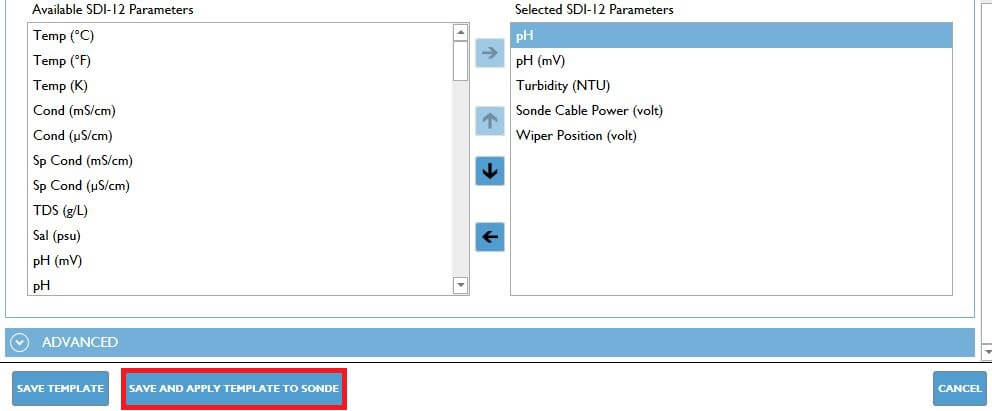
Figure 3: Apply deployment template to sonde.
Review Parameter Template
After saving the template, wait at least 15–30 seconds to allow the sonde to upload it before disconnecting. To verify the template was saved correctly, disconnect from the sonde, remove power for 30 seconds, then reapply power. Reconnect to the sonde, navigate to the DEPLOYMENT tab, and select Create Template from Sonde. If the template name and parameter list load automatically, the save was successful. If not, reload the template and allow additional time after saving.