
Nortek Aquadopp X-Series Integration Guide
The Nortek Aquadopp measures current using acoustic doppler technology. It easily integrates with NexSens X-Series data loggers using the RS-232 sensor interface.

Sensor Setup
Before the sensor can be deployed, it must first be set up through the Nortek Deployment software. Follow the manufacturer’s guidelines for sensor setup.
Note: Be sure to notate the following settings as they will be needed to complete setup:
- Measurement Interval
- TM Average
- Enabled parameters (i.e., velocity, amplitude and correlation)
- Number of Beams (Num Beam)
- Number of Cells (Num Cell)
Connecting with X-Series Loggers
Next, the Aquadopp will need to be set up for the X-Series logger using CONNECT software. If you have not yet done so, set up the project in WQData LIVE.
- Connect the sensor using the supplied cable to one of the open sensor ports on the logger and note the port number.
- Plug the X3 into the USB port of the computer and power it on with the AC power cable.
- Open CONNECT and select the SENSOR tab.
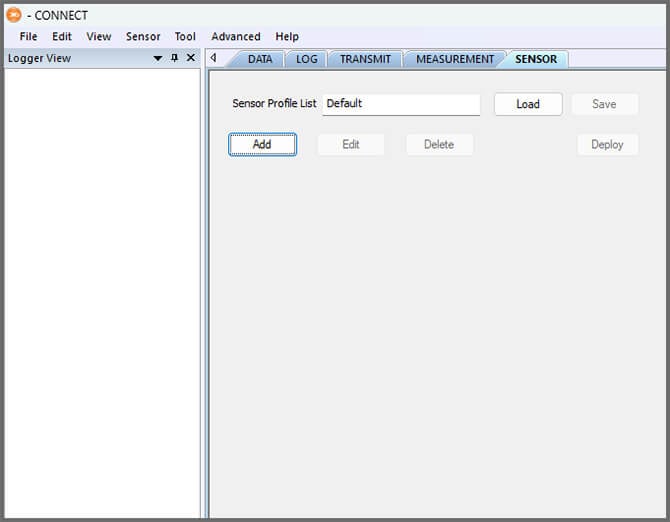
- Click Add and select Nortek from the Manufacturer drop-down. Then select the appropriate model.
- Select the port number.
- Select either Continuous, Switch or None in the Power drop-down.
- None is recommended when internal batteries are installed in the sensor.
- Review the NOTES section to ensure the Aquadopp settings match those set previously in the manufacturer’s software.
- Adjust the Num Beam and Num Cell as needed.
- Unselect Store Velocity, Store Amplitude, or Store Correlation if those parameters are not set to output on the device.
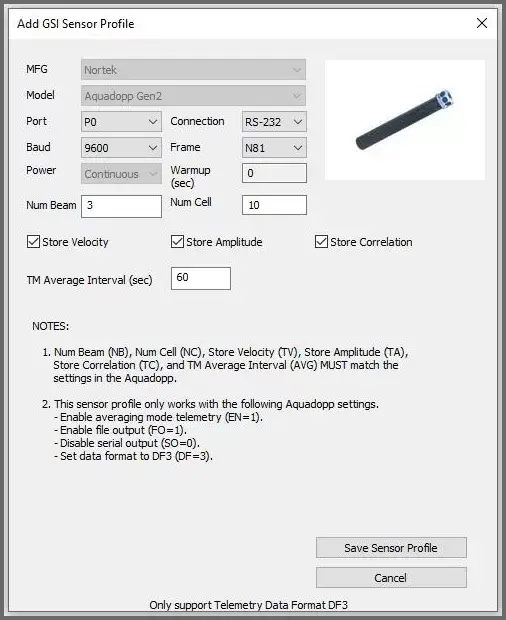
- Select Save Sensor Profile.
- Complete the setup for all other sensors, and then click Save.
- Name the Sensor Profile List and select Ok.

- Complete system setup by clicking Deploy.
- Open the Log tab and click Read from Logger.
- Select the Nortek Aquadopp from the list on the left and set the Log interval to match the Measurement Interval set in the manufacturer’s software.
- Click Same SU Interval and then Save to Logger.
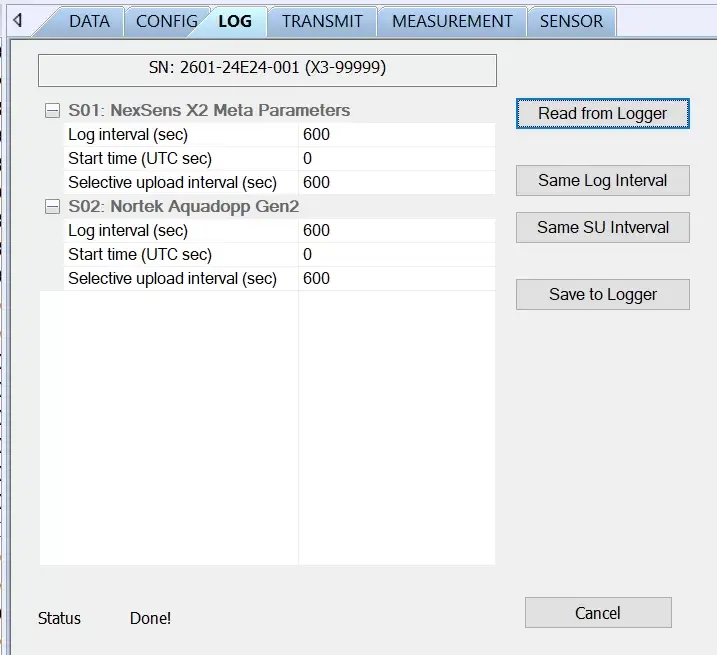
- Confirm that data is being transferred to WQData LIVE at the next interval.