
SonTek-IQ Acoustic Doppler Flow Meters X-Series Integration Guide
The SonTek-IQ Series Acoustic Doppler Flow Meters are ideal for monitoring flows in canals, culverts, pipes, and natural streams. It connects to X-Series data loggers via the SDI-12 interface.
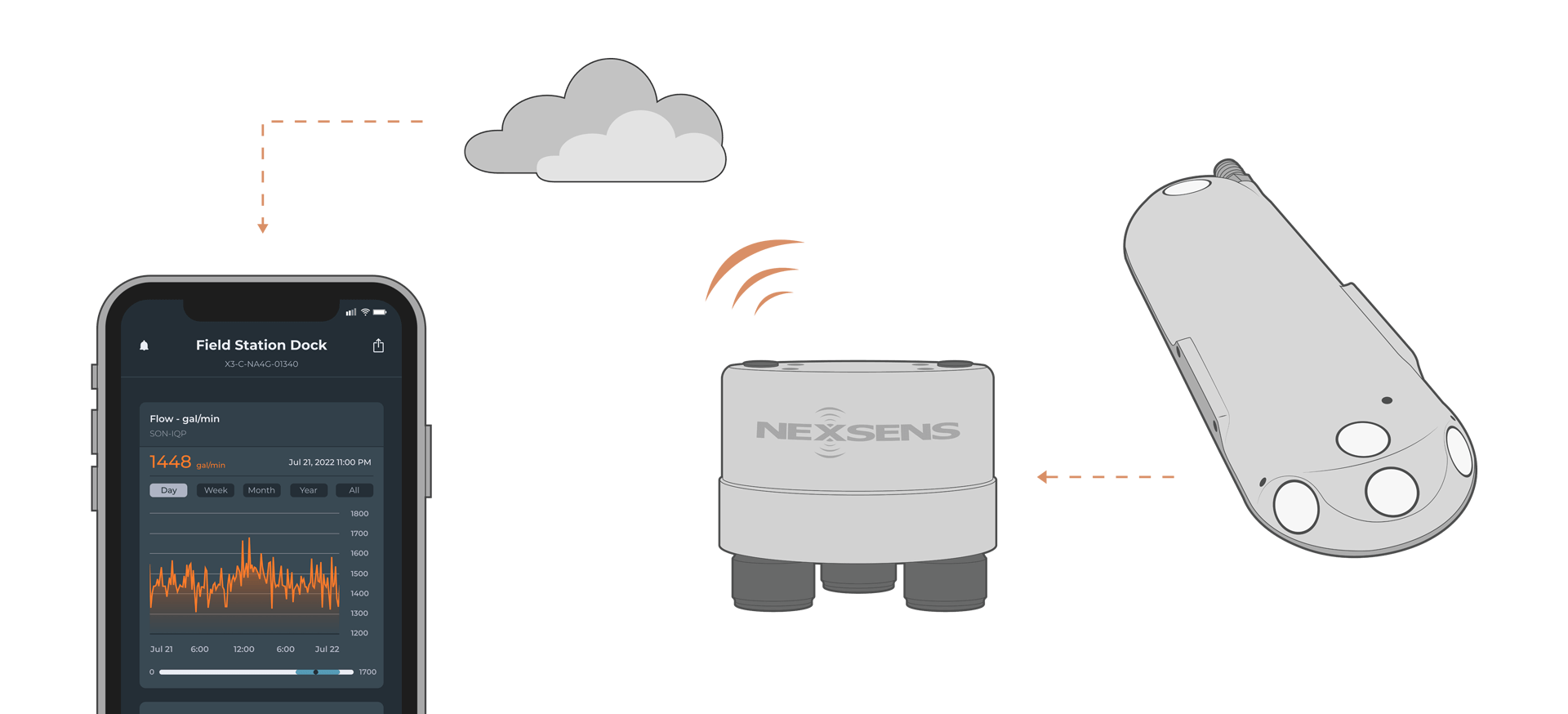
Sensor Setup
Follow the manufacturer’s guidelines to set it up for SDI-12 output. Be sure to note the SDI-12 address.
Note: Confirm the software version is SW/FW 3.0 or newer and update if needed.
Connecting with X-Series Loggers
Next, the SonTek IQ meter will need to be set up for the X-Series logger using CONNECT software. If you have not yet done so, set up the project in WQData LIVE.
- Connect the sensor using the supplied cable to one of the open sensor ports on the logger and note the port number.
- Plug the X3 into the USB port of the computer and power it on with the AC power cable.
- Open CONNECT and select the SENSOR tab.
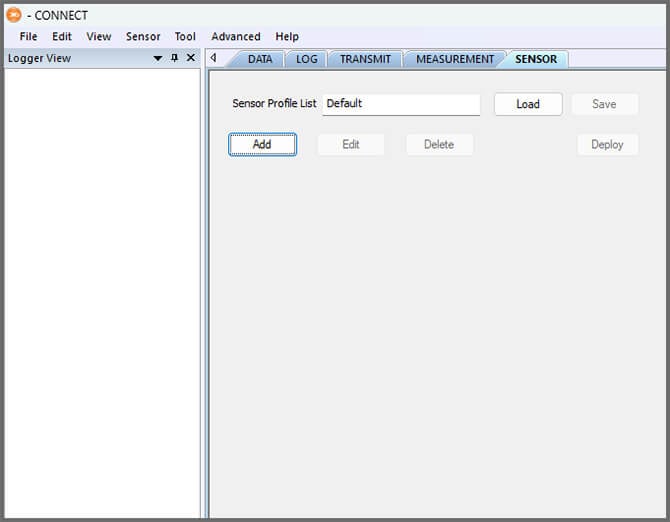
- Click Add and select SonTek from the Manufacturer drop-down. Then select the appropriate model: IQ (English) or IQ (Metric)
- Adjust the SDI-12 address if needed and select the port number.
- Select either Continuous or Switch in the Power drop-down.

- Select Save Sensor Profile.
- Complete the setup for all other sensors, and then click Save.
- Name the Sensor Profile List and select Ok.

- Complete system setup by clicking Deploy.

- Confirm that data is being transferred to WQData LIVE.
Mounting
The SonTek-IQ Series Acoustic Doppler Flow Meters can be deployed in canals, culverts, pipes, and natural waterways. For mounting instructions, follow manufacturer guidelines.